11. Layout Compatibility
GraphSpace allows it’s Users to create User Defined Layouts for graphs. There could be possible scenarios where a Layout for a particular version of a graph may or may not be compatible with some other version of the graph. The Layout Compatibility feature gives Users the ability to check whether a layout is compatible with a version of Graph in GraphSpace. The User needs to be signed-in to GraphSpace in order to use this feature.
The following features are available in the Layout Compatibility functionality:
- Layout Selection Dropdown Menu
- Layout Compatibility Status Bar
- Checking Layout Compatibility
- Fixing Layout Compatibility Errors
11.1. Layout Selection Dropdown Menu
The Layout Dropdown menu allows Users of GraphSpace to quickly select and apply the Layouts. There are 3 the broad sections to the Dropdown Menu -
- Automatic Layouts - System defined layouts available to all the Graphs in GraphSpace
- Private Layout - Layouts created by User for the Current Graph.
- Shared Layouts - Layouts shared by Users of GraphSpace

11.2. Layout Compatibility Status Bar
The ticker bar used for notifying the User are of 3 different Colors corresponding to 3 different situations -
- Red - For Errors, like incompatible Layout or layout missing nodes/edges of Graph.
- Yellow - For Warnings, If the compatibility status of the Layout is unknown or if the layout has additional nodes/edges which are not present/required in the current version of the Graph.
- Green - For unknown layouts, after the Layout compatibility check if the layout is found to compatible then the User is notified in a Green Ticker bar.

11.3. Checking Layout Compatibility
Anytime a User tries to apply a Layout on a particular version of the Graph, GraphSpace checks the layout compatibility status. Based on the layout compatibility status, 3 scenarios may arise -
- The layout is compatible with the current version of the Graph
- Layout is not compatible with the current version of the Graph, &
- The compatibility status of the layout is not known
11.3.1. Layout is compatible
If the layout is compatible with the current version of the Graph then it simply applied to the Graph. The User will not receive any Error or Warning Notification in the Status Bar.
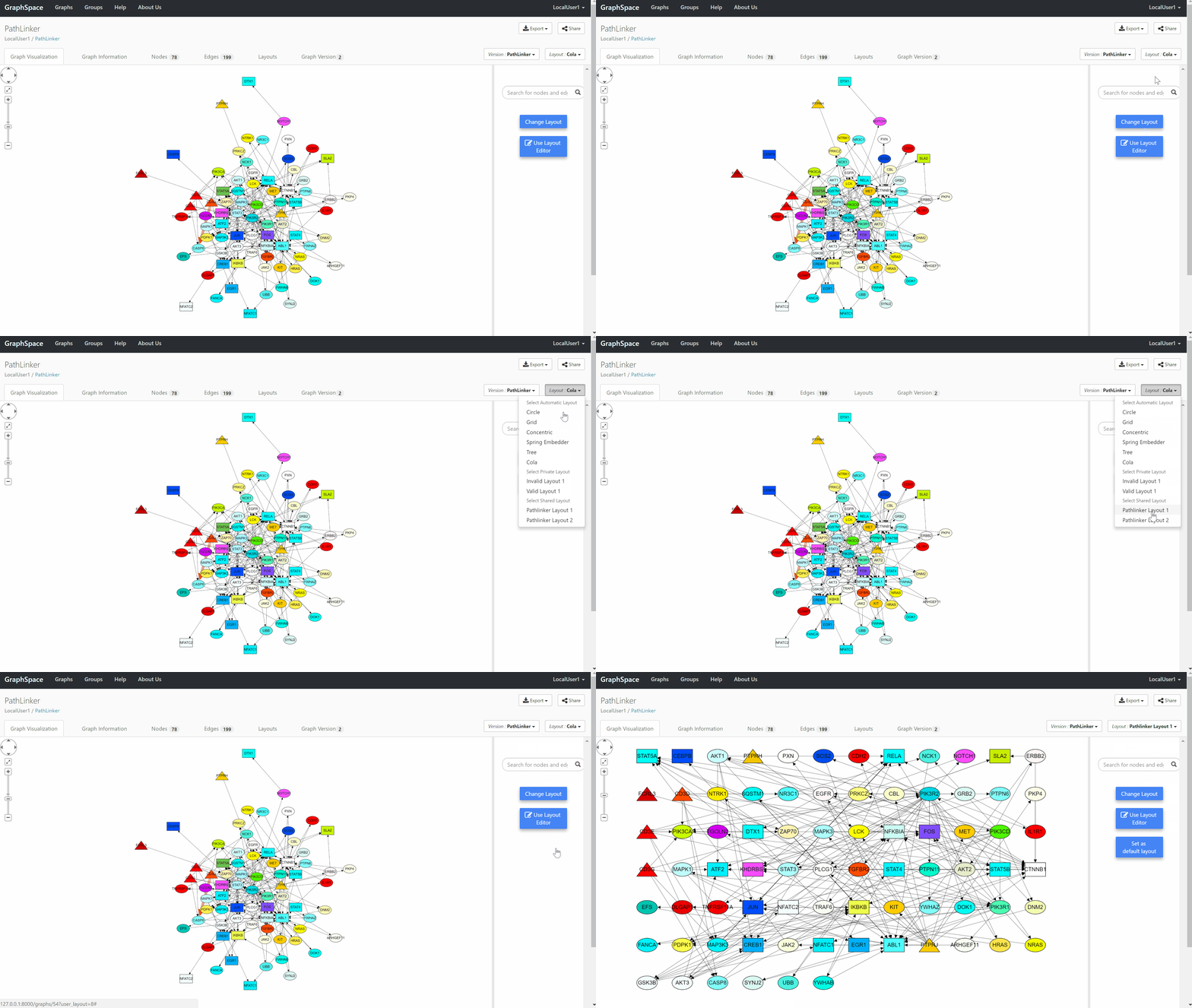
11.3.2. Layout is not compatible
If the layout is not compatible with the current version of the Graph then the User is notified about this issue in the Layout Compatibility Status Bar. The status bar turns red to notify the User that there are Errors in the Layouts. The User needs to fix the errors before they can apply the layout.
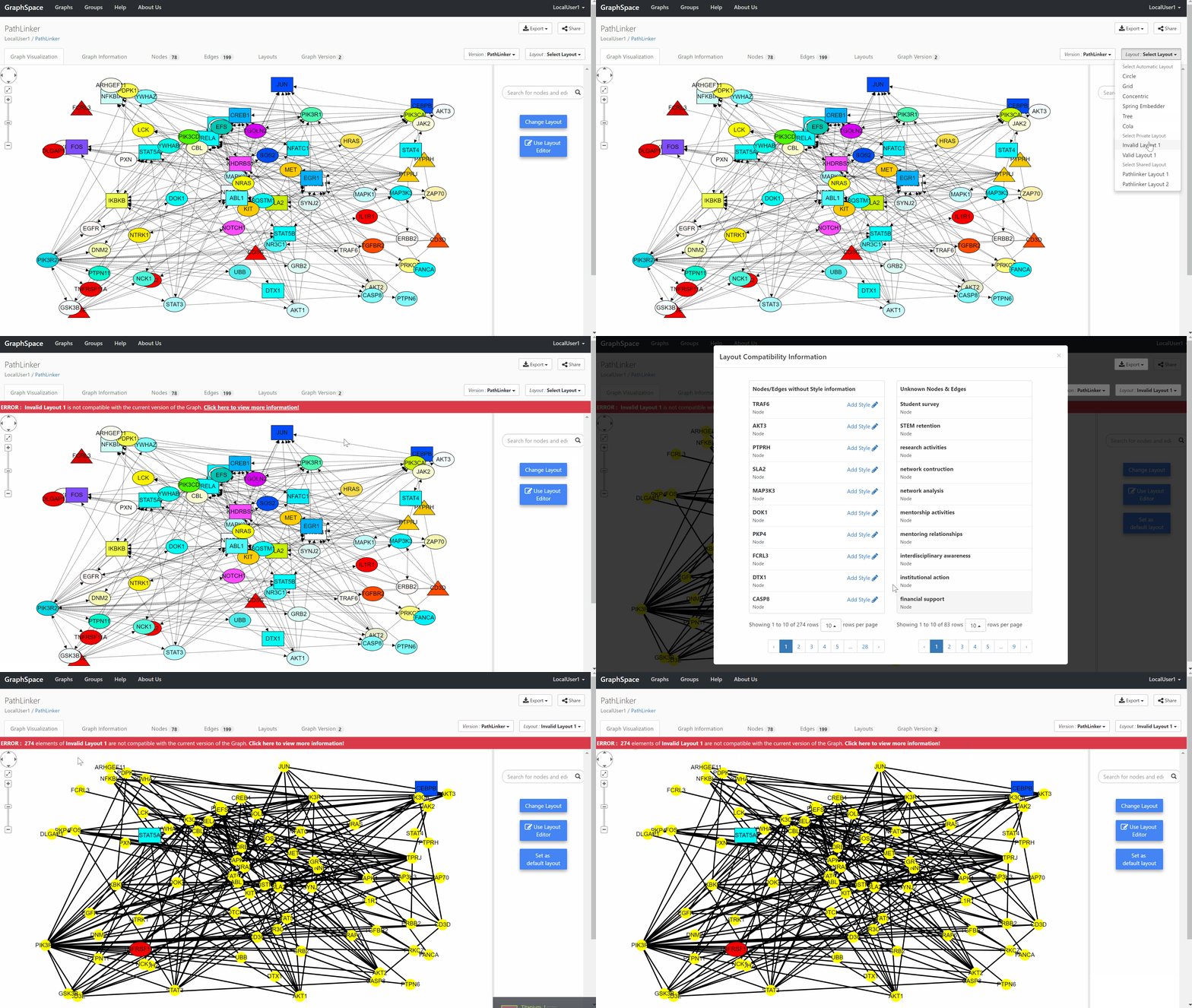
How to apply an incompatible layout?
- Step 1 : Select the layout you want to apply.
- Step 2 : Click on
Click here to view more informationto open layout compatibility table.

- Step 3 : Add styles for all nodes & edges in the
Nodes/Edges without style informationColumn.

- Step 4 : On successfully adding styles for all nodes and edges in
Nodes\Edges without style informationcolumn, the layout compatibility status bar will disappear or change to aWarningstatus. The Warning status will appear if there are additional nodes and edges in the Layout which are not present in the Graph. This doesn’t prevent the layout from being applied to the current version of the Graph.

11.3.3. Layout Compatibility is unknown
If the compatibility of the Layout with the current version of the Graph could not be determined then the User is notified about this issue in the Layout Compatibility Status Bar. The status bar turns Yellow to warn the User about the unknown layout compatibility status. The User can run a compatibility check to determine whether the layout is compatible or not.
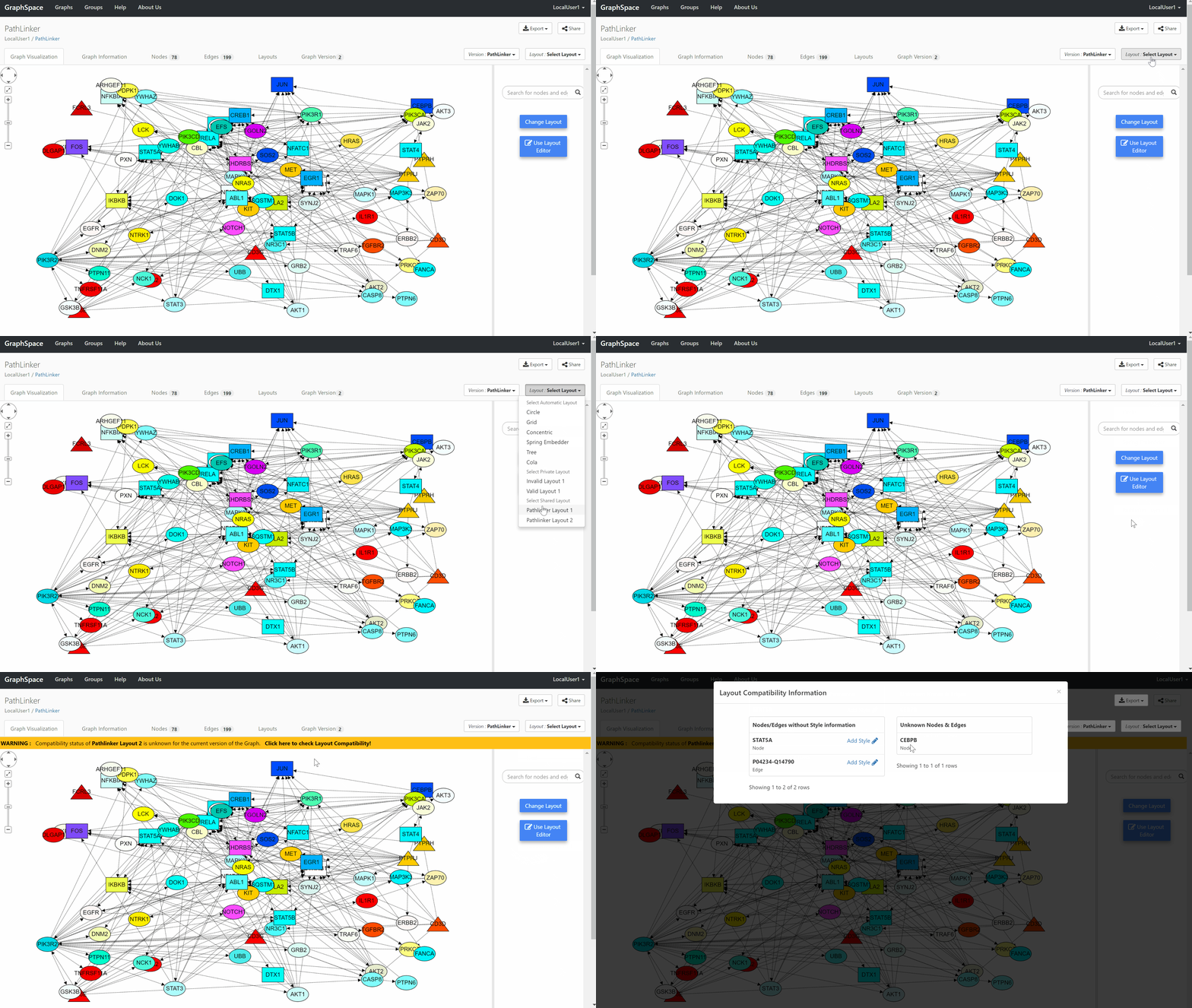
Depending on the layout compatibility test,the User will have one of the following options -
- Layout is compatible - The user is notified using a
Greenstatus bar suggesting that the Layout is compatible and can be applied. The status is then stored in the database to allow Users to skip the Layout Compatibility checking step next time they want to use this layout.

- Layout is not compatible - The conflicting or missing nodes & edges are displayed in a List format. The User can then edit these nodes & edges to fix the errors.
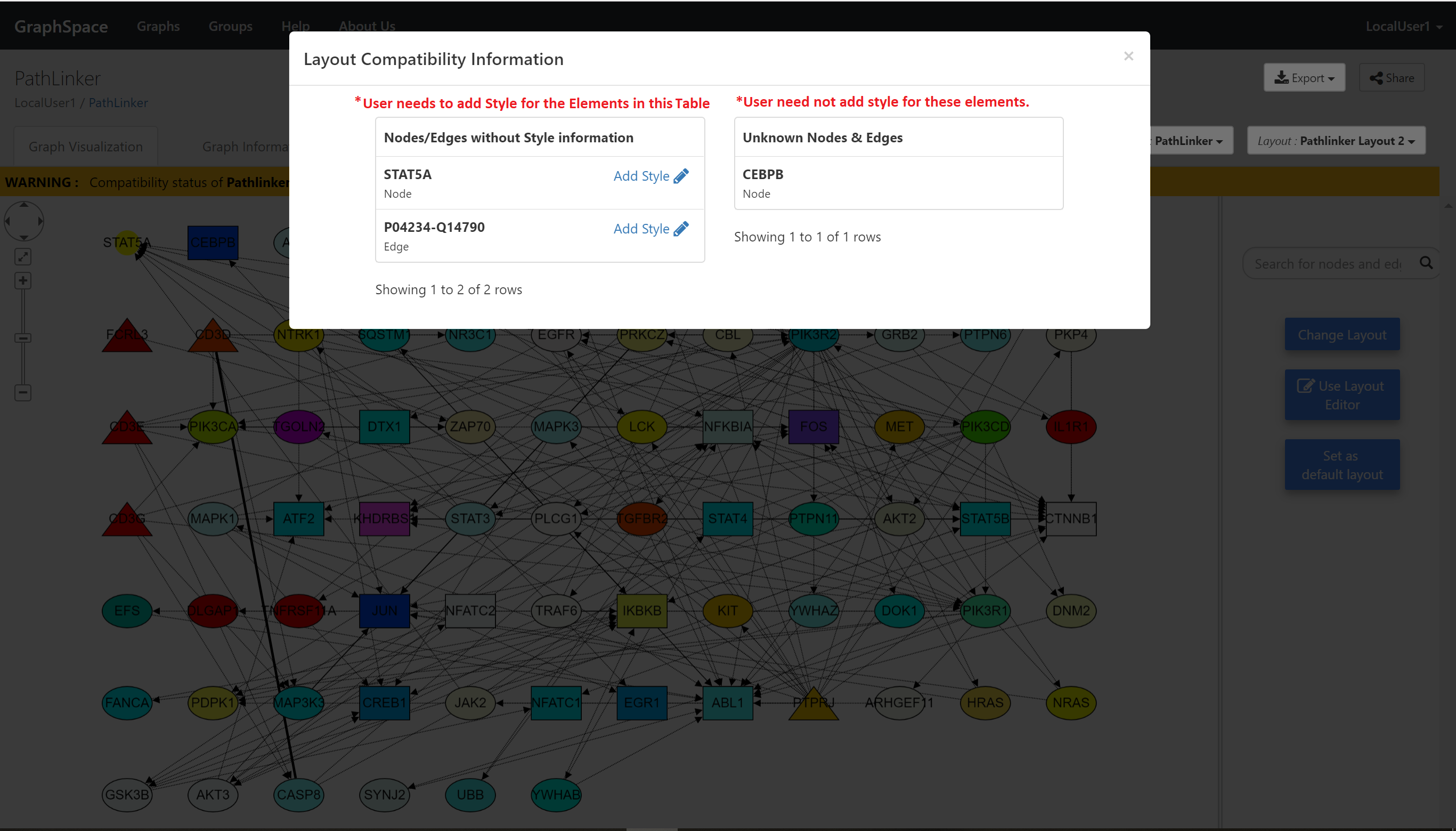
How to apply a Layout with unknown compatibility status?
- Step 1 : Select the layout you want to apply.
- Step 2 : Click on
Click here to check Layout compatibilitytest compatibility of the layout with the current version of the Graph.

If the layout is compatible then the User is notified with a Green Status bar. User can apply the layout by clicking on Click here to apply this Layout

If there are errors in the Layout then a Table will popup in the screen showing a list of elements to the User.
- Step 3 : Add styles for all nodes & edges in the
Nodes/Edges without style informationColumn. - Step 4 : On successfully adding styles for all nodes and edges in
Nodes\Edges without style informationcolumn, the layout compatibility status bar will disappear or change to aWarningstatus. The Warning status will appear if there are additional nodes and edges in the Layout which are not present in the Graph. This doesn’t prevent the layout from being applied to the current version of the Graph.
11.4. Fixing Layout Compatibility Errors
Users can add style information for nodes & edges by clicking on the Add Style in Nodes/Edges without Style information Table.
The status bar displays the number the elements which require attention of the User. This status bar is updated in real-time as the User adds Style for the missing elements.
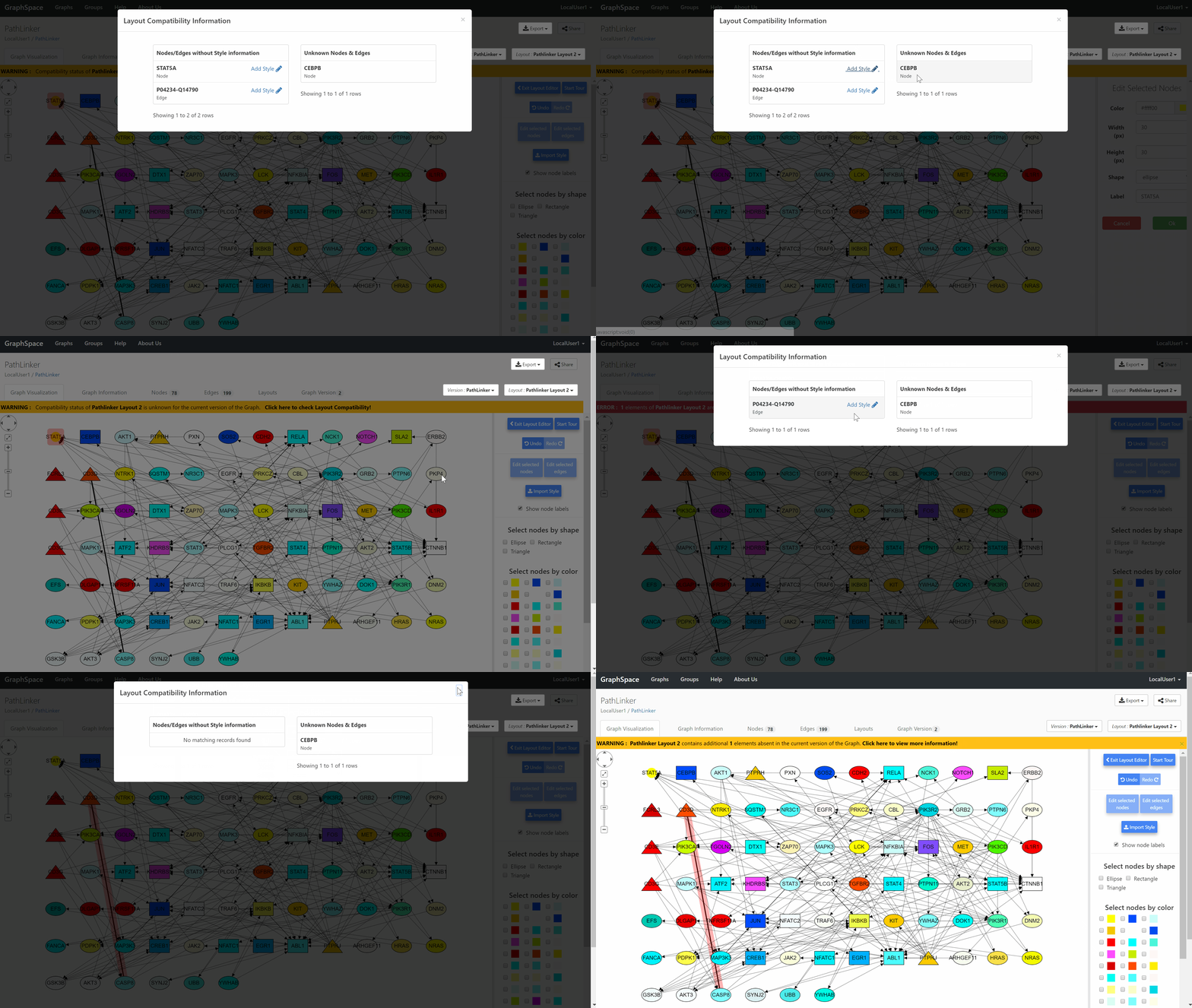
When the User has successfully added style for all the missing elements then the Status bar will be updated based on the following 2 conditions -
- Both the
Nodes/Edges without Style information&Unknown Nodes & EdgesTables are empty - In this case the Status bar will disappear from the screen suggesting that all issues have been resolved. Unknown Nodes & EdgesTable is not empty - In this case the Status bar changes toWarningto let the User know that there are additional elements in the Layouts which are not present in the Graph.
